AI Pet Christmas Video Generator

Make a Christmas video from your pet photo

Describe one clear action and a setting.0/300

The selected duration uses 50 credits. The required balance is checked when you submit.

Your video preview will appear here

Choose a photo, review the prompt, and submit a generation request to see a real result here.

What the AI Pet Christmas Video Generator creates

An AI Pet Christmas Video Generator starts with a photo and gives it a seasonal motion brief. Instead of asking your dog or cat to sit through a costume shoot, you can explore an imagined holiday moment: a pet noticing a wrapped present, trotting past a lit tree, turning toward falling snow, or making a small celebratory dance. The uploaded image anchors the clip, while the fixed template direction provides Christmas context and your optional prompt adds one scene detail. This page sends the photo and direction to the project's configured image-to-video workflow. It is not a still-photo filter or a collection of fixed Media.io effects. The generated motion can differ from the idea, so review it as creative material rather than documentary footage of your pet.

The template is intended for a greeting, a family keepsake, or a short social post built around a pet you know. It works best when the photo has one obvious subject and the prompt asks for one coherent beat. You decide whether the final clip feels right by watching the returned video, checking the pet's markings and movement, and choosing whether to download it. The AI Pet Christmas Video Generator does not promise an exact likeness, a particular dance, a watermark policy, or a fixed completion time. Generation availability also depends on the provider and storage configuration currently enabled for the app. This tool is a dog Christmas video maker in the sense that it animates an uploaded dog photo; it is not a library of fixed clips. The same flow can be used as an AI cat Christmas video starting point when the reference photo clearly shows a cat.

How to make a Christmas video from a pet photo

The process begins with an image you can use, then adds a short creative direction before the video request is submitted.

01

Choose a clear pet photo

Select a JPG, PNG, or WebP photo under 10 MB. A single dog or cat with visible face, fur pattern, and body gives the image-to-video model a clearer subject to follow. The preview lets you confirm the right file before you continue.

02

Set the scene and duration

Pick the duration and add an optional prompt of up to 300 characters. Name one action, such as sniffing a gift or looking toward the tree, then add a setting or mood. The button shows the configured credit cost before submission.

03

Submit, review, and download

Sign in, confirm that you may use the photo, and submit the request. The page shows the task state and displays a video player only after the service returns a completed result. Watch the clip before downloading or sharing it.

Christmas scenes for dogs, cats, and family greetings

Think of a scene as a small action your pet could plausibly perform, with holiday details supporting it instead of competing for attention.

A present under the tree

Ask for a curious sniff, a gentle paw at a ribbon, or a look back at the camera. This makes a light greeting for relatives who already know the pet, and it leaves room for the face and coat to remain the focus.

Snowy window or winter walk

Use falling snow, a warm window, or a quiet winter path as the setting. Describe how the pet reacts to the scene rather than stacking several events into one prompt. A calm action can suit a shy animal better than a fast dance.

Santa-inspired portrait in motion

A red scarf, a Santa hat, or a festive bandana can suggest the season without asking for a complicated costume transformation. A pet Santa video generator can change a small accessory between frames, so review the collar, hat, and fur edge closely before deciding whether the result feels right.

Playful dance or holiday card

A short paw-step or head turn can give an AI Christmas pet video from photo a playful rhythm. A Christmas pet dance video does not need a complicated routine; one simple beat is easier to review. For a card, keep the action simple and the background uncluttered so the clip is easy to watch on a phone and still recognizable as your pet. This AI Pet Christmas Video Generator is designed around a single seasonal moment, not a long sequence of stunts.

Choose a photo that leaves room for motion

Use a photo you took or are allowed to use. Prefer one pet in focus, with the face unobstructed and enough of the body visible for the requested action. Even light helps show coat color and markings. Avoid heavy filters, motion blur, busy patterns, cropped ears, and a second animal covering the subject. The image is a starting frame, not a guarantee that every detail will stay unchanged. A photo that already shows a pet mid-jump may encourage movement that conflicts with a prompt asking the pet to stay still.

Write one action, then add the holiday mood

For an AI Pet Christmas Video Generator prompt, start with the subject and one visible action: “the terrier looks up as a paper snowflake drifts past.” Add a place or light quality, such as “beside a warm window with a small tree.” If the camera should move, say so simply; otherwise focus on what the pet does. Avoid conflicting instructions such as “run quickly and remain perfectly still,” or long lists of props, camera cuts, and costume changes. Clear positive phrasing gives the system a narrower creative brief. Try a simple direction first, watch what the model changed, then revise only the detail that matters. Prompt advice from another provider is a useful starting point, not a guarantee for this app's active model.

What can change in a generated clip

Image-to-video generation can alter markings, fur texture, paws, accessories, background objects, or the pet's apparent action. A frame can look convincing while still differing from the source photo. The configured provider may also reject an image or prompt under its own safety rules, and the available output behavior can change with provider settings.

If the result looks wrong, try a clearer photo or simplify the requested movement, then submit a new request. Compare the full clip, not only its opening frame. Do not present an AI-generated scene as proof that an event happened. Before posting realistic or substantially edited AI content to TikTok, check TikTok's current disclosure guidance. Other services may have different rules.

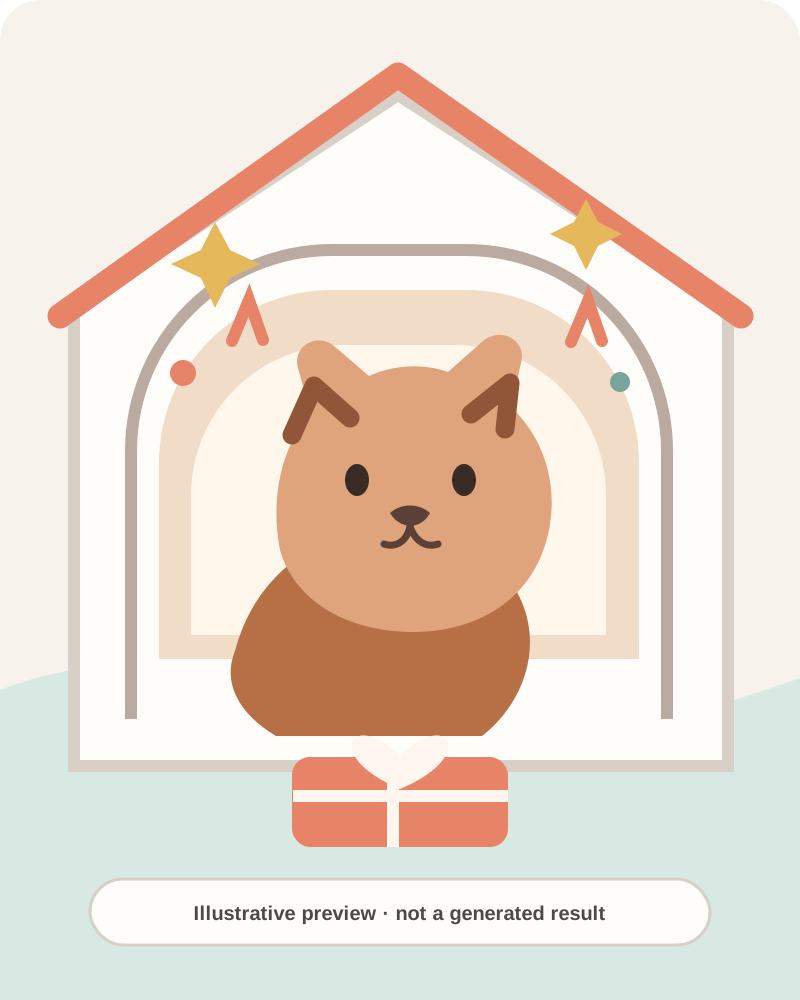
Illustration of a dog beside a wrapped present in a Christmas window scene; it is not an AI-generated video result
Illustrative artwork for this page. It is not a sample output from the generator.

Illustrative pet Christmas scene

The artwork shows the kind of seasonal setting a prompt might describe, but it is intentionally static and illustrative. It does not demonstrate the active provider, output quality, or a completed task. Your generated video appears in the result area only after a real request finishes.

AI pet Christmas video questions

What is an AI Pet Christmas Video Generator?

It is a photo-to-video tool that applies a Christmas-focused motion direction to a pet image. Upload one supported photo, choose a duration, and optionally describe a simple scene. The result is a newly generated clip, so details may differ from the original photo. Use the AI Pet Christmas Video Generator for a short seasonal idea, then review what the model actually returned.

Can I make a dog Christmas video or an AI cat Christmas video?

You can try a clear photo of a dog or cat. Keep one pet prominent and describe one action. The image-to-video system is not guaranteed to preserve every marking or produce the exact movement you imagined, so check the finished clip before sharing.

Will the video look exactly like my pet?

No exact likeness is guaranteed. The source photo guides the generated scene, but fur, markings, accessories, paws, and motion can drift. Choose a clean reference image and review the full result. If a detail changes, try a simpler prompt or another photo.

What should I write in the prompt?

Describe one action and one setting, for example a cat sniffing a parcel beside a lit tree. Add a camera move only if it matters. Short, direct instructions are easier to interpret than several conflicting actions or many unrelated props.

How many credits does a pet holiday video use?

The credit amount depends on the selected duration and the app's current generation settings. The button displays the required amount before you submit, and the server checks your balance when the request starts. You need to sign in to generate.

What happens if the video fails or takes a different direction?

A failed task is shown in the result area, and the existing task service returns charged credits when generation fails. A completed clip can still differ from the prompt because motion models interpret scenes probabilistically. Review it, simplify the prompt if needed, and submit a new attempt.

Explore more holiday video templates

Try another seasonal photo-to-video direction or return to the template collection. Each page has its own prompt and generation settings.

Sources and use notes

The sources below informed the prompt guidance, disclosure note, and questions on this page. The Media.io page was reviewed as a reference for topic and structure only; its promotional claims are not adopted here.

Research checked November 17, 2026. Community comments are anecdotal; provider documentation describes its own models, not a guarantee about this app.

Use a photo you have permission to use. Generation depends on the provider and storage settings enabled for this app. Preview the result and follow the current rules of any platform where you share it.